
How to Install Windows 10 on Virtualbox


How to install Windows 10 in a virtual machine


You will need:
Install VirtualBox 5.0 or higher
Installation media for Windows 10 (ISO or DVD)
Step 1: Set up a Windows 10 VirtualBox


Start by opening VirtualBox and clicking on the “New” button.
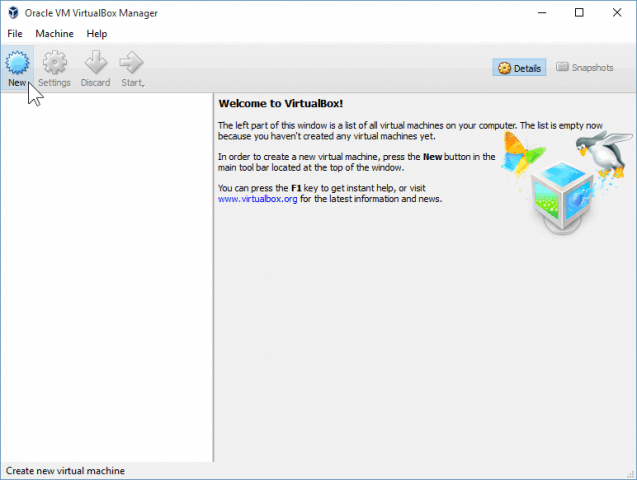


Pick a name for the VM as well as the type and version. You’ll be able to choose between a 32-bit and 64-bit install. I advise you to stick with 32-bit if you don’t have a lot of RAM.


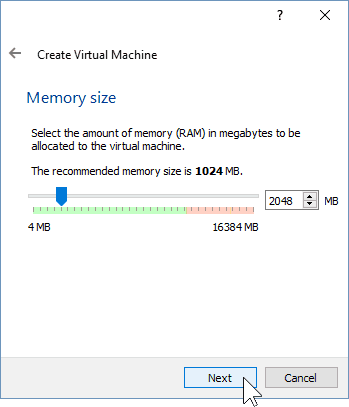
On the next screen, you’ll have a chance to configure how much RAM that the Virtual Machine will be allowed to use. The default is 1GB, which is the minimum amount of RAM for Windows 10. I went ahead and gave it double that amount for the sake of performance.


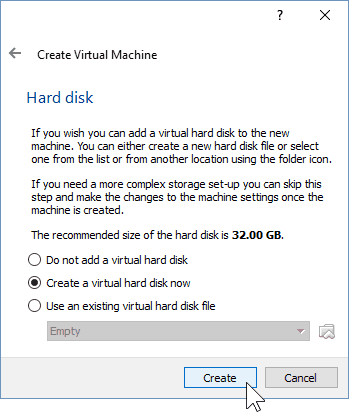
Configuring the HDD, you have to pick “Create a virtual hard disk now”, assuming you don’t have one created previously.


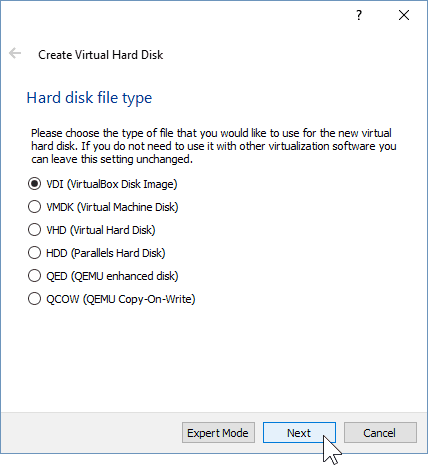
You can leave the next two screens at their default settings since they work just fine with the new OS. I highly advise you to stick with a dynamically allocated virtual hard disk, since you’ll save a lot of space and won’t impair the VM performance that much.
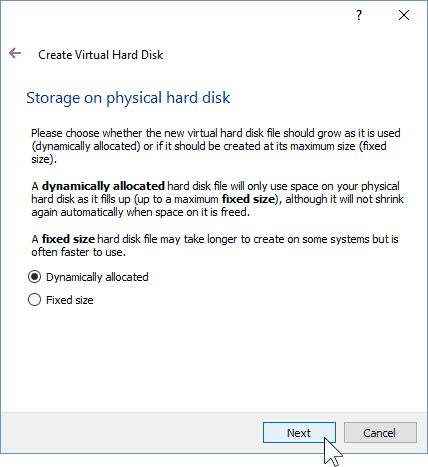


At the final virtual hard disk screen, you’ll be able to change the location of the drive as well as its size. I left mine to the defaults — you can do so as well.
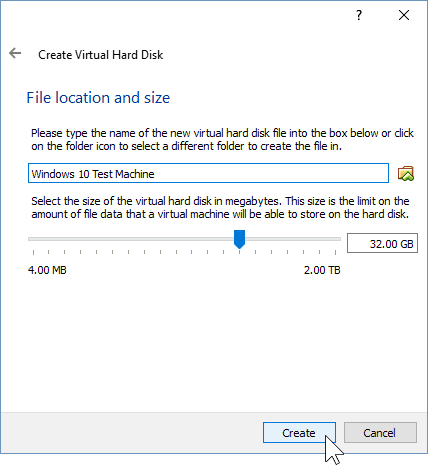


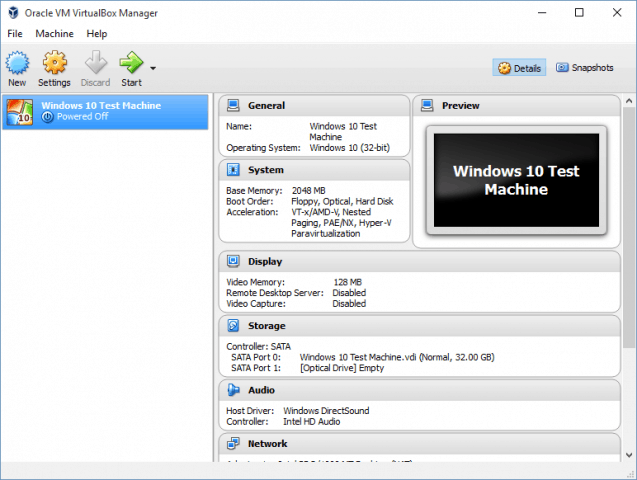
After clicking the “Create” button, you should be able to see your created VM. But we’re not done just yet – we need to show VirtualBox the path to our Windows 10 ISO.


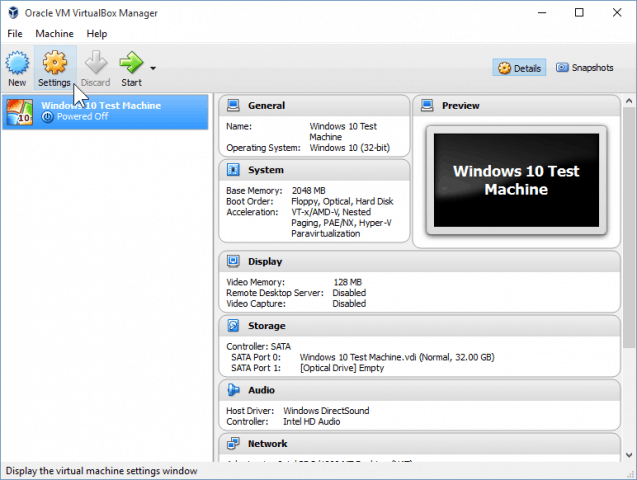
Begin by clicking on the “Settings” button.


Navigate to the Storage category and click on the empty DVD drive in the Storage Tree. From there, click the small disc icon in “Attributes” to mount an ISO.
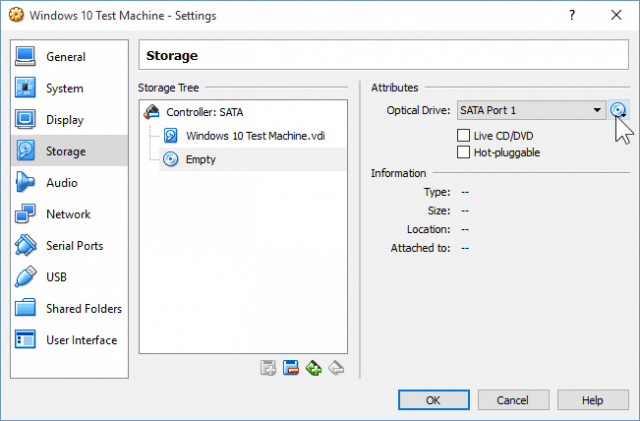


Now just navigate to your ISO location, and double-click on it. Afterward, just press OK to confirm the changes and exit from VirtualBox Settings.
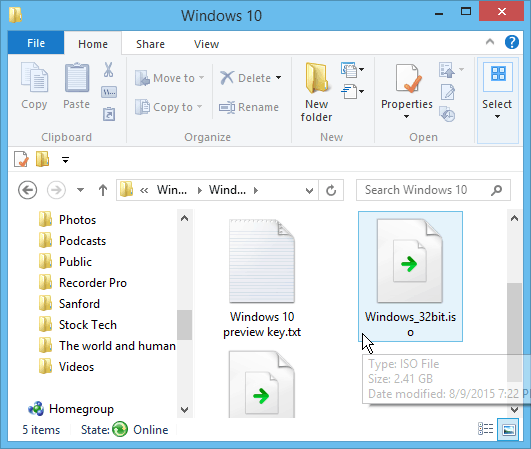


Step 2: Installing Windows 10


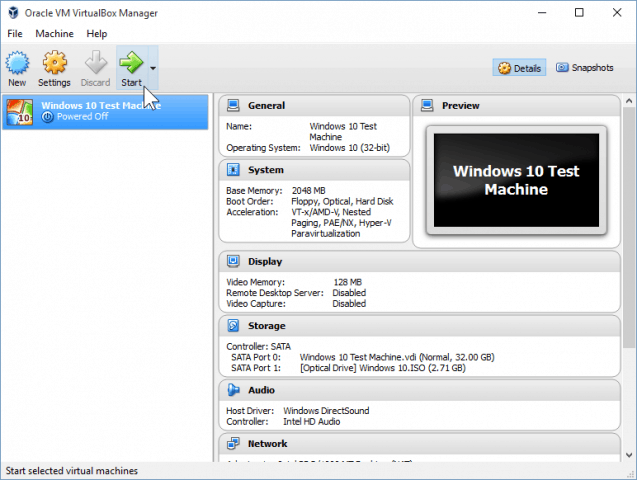
Once you’re ready to install Windows, select your VM and click on the Start button.


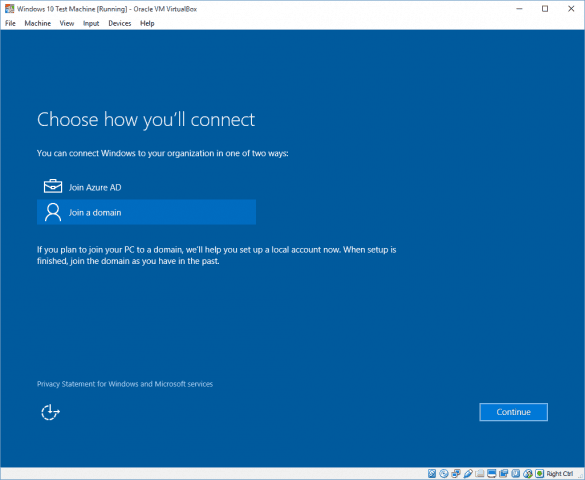
Note: If you see the “Choose how you’ll connect” screen during your install, select “Join a domain” and continue. I did not encounter this screen while installing with VMware, but I suppose VirtualBox works a bit differently when it comes to its network settings.


After installing it, you should be able to fully use and abuse windows 10 to find out if you like it or not. Although I had a bad fist impression of after some tweaks and customizing, I’m pretty happy with what it has to offer.
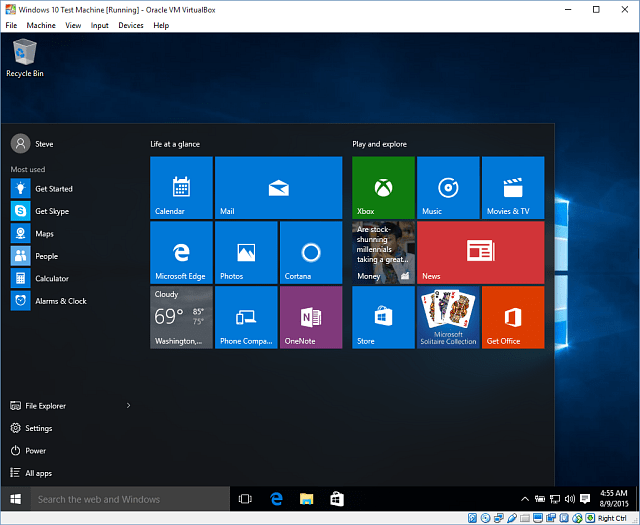


It’s also worth noting that this allows you to test out Windows 10 before upgrading your host computer. And, it allows you to test different software programs and apps to verify if they’ll run on the new OS or not.

Comments

Post a Comment

Most Popular

What is LINUX??

What Is Linux? From smartphones to cars, supercomputers and home appliances, home desktops to enterprise servers, the Linux operating system is everywhere.Linux has been around since the mid-1990s and has since reached a user-base that spans the globe. Linux is actually everywhere: It?s in you Here is all the information you need to get up to speed on the Linux platform. r phones, your thermostats, in your cars, refrigerators, Roku devices, and televisions. It also runs most of the Internet, all of the world’s top 500 supercomputers, and the world’s stock exchanges.But besides being the platform of choice to run desktops, servers, and embedded systems across the globe, Linux is one of the most reliable, secure and worry-free operating systems available. What is Linux? Just like Windows, iOS, and Mac OS, Linux is an operating system. In fact, one of the most popular platforms on the planet, Android, is powered by the Linux operating system. An ...

The Experience I had by participating to the Inspire 2020

I  participated to the competition named Inspire 2020.I got a chance to receive a vast knowledge about Coding and they gave me some advices for How can I Improve my coding skills.Inspire 2020 is a strength for technological knowledge. Inspire 2020 is a good chance for Children. Inspire 2020 have  different categories. Such as Embedded Systems Video Clips/ Animated Cartoons Computer Applications E-Books Blogs Development Digital Posters  Are Some of them............

How to Activate Windows 10

How to activate Windows 10 By Droid Hunter Plenty of the best laptops and computers come with the Windows 10 operating system (OS) installed, activated, and ready to go after some quick setup. But, there are plenty of reasons you might need to activate Windows 10. If you've built your own PC with the best processor and best graphics card for some serious gaming or upgraded your computer to run on the best SSD for extra fast speeds, you'll like be looking at a clean installation of Windows 10 onto your computer, and you'll need to activate. How you activate Windows 10 on your computer will vary. If it was previously activated with a product key, you'll need that key to activate it again. Or, if you had linked your Windows 10 license to your Microsoft account, you can easily activate Windows 10 again on the same machine even if you've made substantial changes to the hardware. We've got instructions on how to activate Windows 10 via both pro...